
Download Tux Typing – typing game, learn to type, kids typing, educational game, touch typing
Overview
Tux Typing is a dedicated educational tool designed to teach typing skills through engaging gameplay. Built around the iconic Linux penguin character, the app transforms the often tedious process of learning to type into an interactive and enjoyable experience. The primary purpose of Tux Typing is to help users—especially children and beginners—develop faster, more accurate typing abilities by promoting touch typing techniques without relying on visual keyboard references.
The app addresses a common challenge among novice typists: the need to constantly look down at the keyboard. By presenting letters in predictable patterns and rewarding correct input with visual and auditory feedback, Tux Typing encourages muscle memory development. This approach supports long-term typing efficiency and reduces typing errors over time.
Target users include students, young learners, educators seeking classroom tools, and anyone aiming to improve digital literacy. The game’s intuitive design makes it accessible to users across a wide age range, from early elementary to older children and even adult beginners. Its educational focus positions it as a valuable resource in both home and school environments.
The developer, Tux4Kids, has a history of creating open-source educational software for children, though specific details about the organization were not provided. The app’s presence in the education category reflects its commitment to learning through play. In the broader app ecosystem, Tux Typing fills a niche for free, non-commercial tools that prioritize skill development over monetization.
Key Features & Functionality
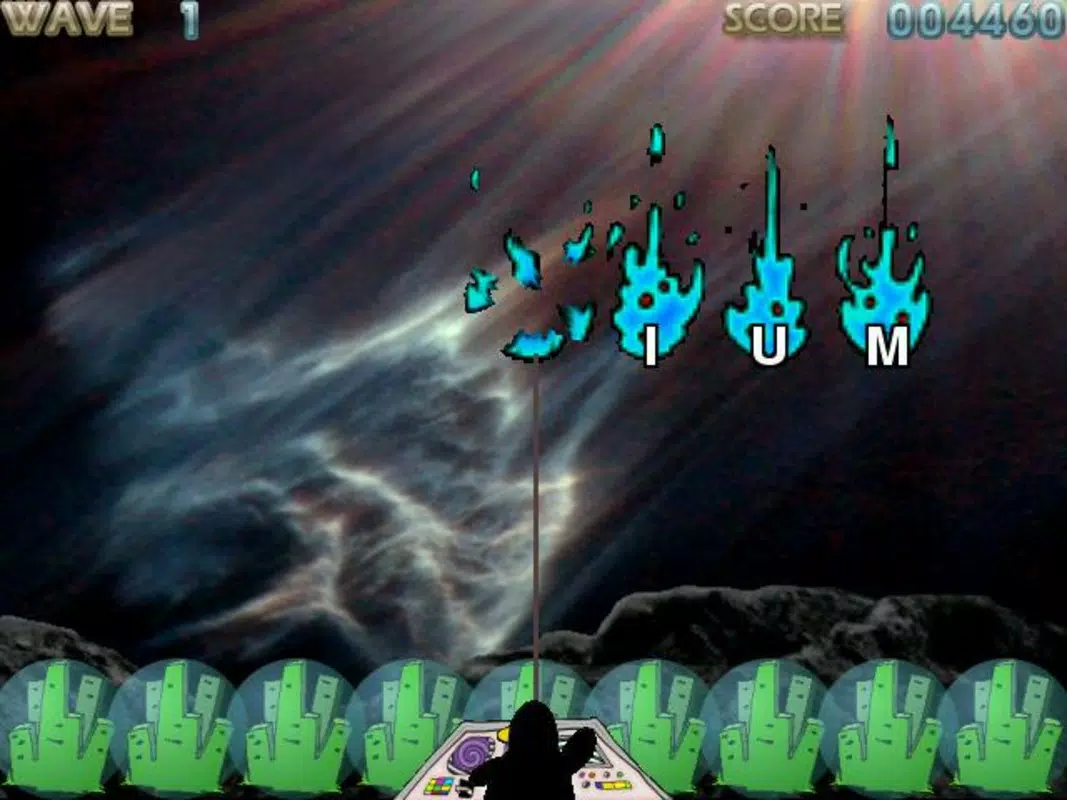
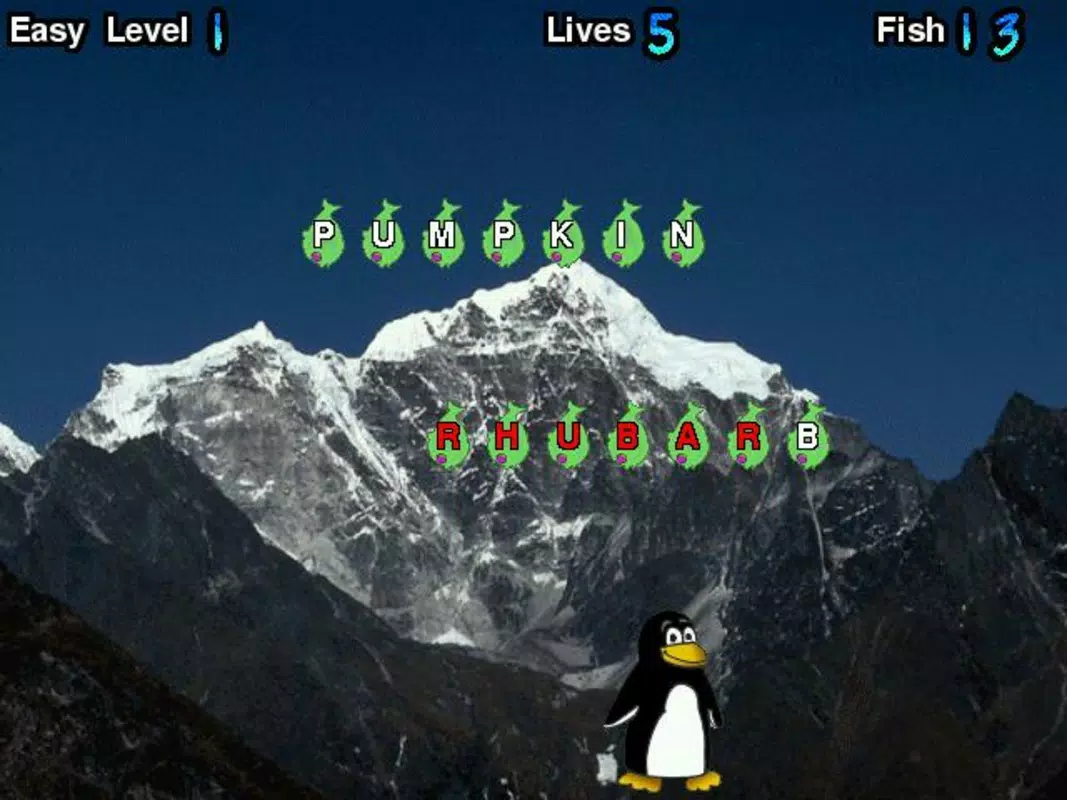
- Interactive Typing Modes: The app includes multiple gameplay styles such as "Fish Cascade," "Comet Zap," and "Type Racer," each designed to challenge users in different ways. These modes vary in pace and complexity, offering diverse ways to practice letter recognition and keyboard navigation.
- Pattern-Based Learning: Letters appear on screen in structured sequences, helping users anticipate key placements and gradually build touch typing reflexes without needing to look at the keyboard.
- Customizable Difficulty Settings: Users can adjust typing speed, letter frequency, and mode intensity to match their skill level, enabling personalized learning paths for different users.
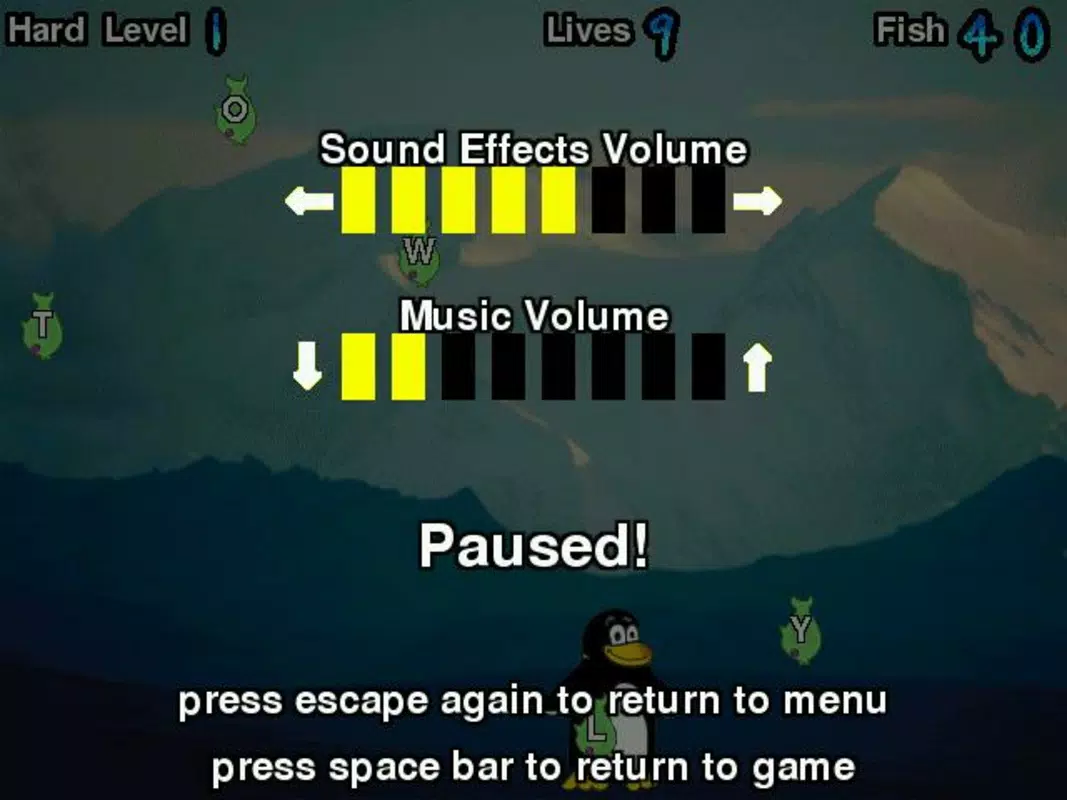
- Visual and Audio Feedback: Correct keystrokes trigger animations of the penguin character moving across the screen, accompanied by cheerful sound effects that reinforce positive performance and maintain engagement.
- Progressive Skill Development: As users complete words, they earn points and unlock new levels, creating a sense of achievement and encouraging continued practice.
These features support real-world use cases such as preparing school assignments, improving productivity in digital work environments, and enhancing computer literacy in early education. The game’s structure promotes consistent practice, making it suitable for daily short sessions or longer learning blocks.
Interface, UX & Performance
The user interface of Tux Typing is clean, colorful, and optimized for ease of use. The layout places the main typing area at the center of the screen, with visual cues such as moving letters and animated penguin responses guiding user interaction. Navigation is straightforward, with minimal menus and intuitive controls that require no prior experience.
Visual style leans toward playful and child-friendly, with bright backgrounds, smooth animations, and a consistent thematic design centered around the Tux character. The app maintains a responsive feel across different screen sizes, though specific performance benchmarks were not disclosed.
Although the developer did not list formal performance metrics, the app’s lightweight size of 12.5 MB suggests efficient resource usage. Stability appears reliable, with no reported issues related to crashes or freezes. The app responds quickly to keystrokes, and transitions between modes are smooth, supporting a seamless learning experience.
For users on lower-end devices, the app’s minimal footprint may contribute to consistent performance. However, compatibility with specific hardware or OS versions was not fully disclosed.
Platform Compatibility & Technical Requirements
Tux Typing is available for Windows-based devices. The current version is 1.0.0, with a file size of 12.5 MB. The app is offered free of charge, making it accessible to a wide audience without financial barriers.
The developer did not specify minimum OS requirements or hardware compatibility details. As such, users should verify system compatibility before installation. While the app is designed for desktop environments, it may not be optimized for mobile or tablet use due to its original development context.
Given its size and platform focus, Tux Typing is likely compatible with most modern Windows systems, including Windows 10 and Windows 11, though this was not confirmed. No additional permissions or background services were reported.
Pros and Cons
Pros
- Free to download and use, removing cost barriers for learners.
- Designed specifically for teaching touch typing through gameplay.
- Engaging visuals and animations help maintain user interest, especially for younger audiences.
- Multiple gameplay modes provide variety and cater to different learning styles.
- Lightweight file size ensures fast installation and minimal storage use.
Cons
- Platform is limited to Windows; no information was provided about availability on Android or iOS.
- Specific technical requirements were not listed, which may cause uncertainty for some users.
- Limited customization options beyond basic difficulty settings.
- No progress tracking or reporting features were mentioned.
- May not appeal to older users or advanced typists seeking more complex challenges.
FAQ
Is Tux Typing safe to download?
Yes, Tux Typing is a free, open-source educational app developed by Tux4Kids. It does not contain ads, malware, or intrusive permissions, making it a secure option for children and schools.
Can I install Tux Typing on my smartphone?
The app is designed for Windows desktop systems. There is no confirmed version available for Android or iOS devices. Users should verify compatibility before attempting installation.
How often should I use Tux Typing to see improvement?
Consistent practice is key. Using the app for 10–15 minutes daily can lead to noticeable improvements in typing speed and accuracy over time.
Does Tux Typing support multiple languages?
Based on the available information, the app primarily uses English. Language support beyond English was not specified.
Is there a way to track my progress in Tux Typing?
The developer did not provide details about built-in progress tracking or reporting features. Users may need to self-monitor their improvement through personal observation.
Final Thoughts
Tux Typing stands out as a thoughtful, purpose-built tool for teaching typing skills in an engaging way. Its blend of education and entertainment makes it ideal for children and beginners who need to build foundational digital competencies. The app’s focus on touch typing, combined with its playful design and multiple game modes, creates a low-pressure environment where learning feels natural and rewarding.
While it is limited to Windows and lacks advanced tracking features, its strengths lie in accessibility, simplicity, and effectiveness. For families, educators, and young learners, Tux Typing offers a reliable, free resource to develop essential typing skills.
Download Tux Typing now


